

Flow Business Cards in 3 Colors

iPhone Mockup PSD

Simple Scene

Free iPhone Mockup PSD White

Basic

Free iPhone Mockups – PSD

Macbook Air – Fully Scalable PSD

iPro Consulting Business Card

Flat Devices

Business Card Template

Minimal iPhone 4 / iPhone 5 Templates

iPhone 5S Psd Vector Mockup

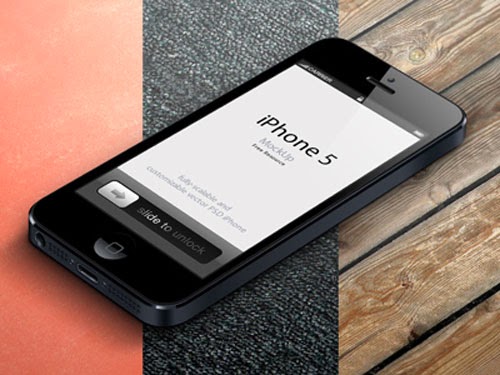
3D View iPhone 5 Psd Vector Mockup
MacBook Pro – 15 Scalable Mock-ups

iPhone 5 Psd Flat Design Mockup

Business Card Template

Isometric Perspective Screens Mock-Up
Business Card Template – reZEAL

Business Card Template – ProCard

Wide iPhone Mockup (PSD)

Color Stripped Business Cards

Scan my QR Code Business Cards

Isometric Perspective Screens Mock-Up

Creative Ring Business Cards

Macbook Template PSD – FREE

Elegant Business Cards

Media Business Cards in 2 Colors

Free 3D Perspective Mockup

Print Shop Color Business Card

Rounded Corner Business Card Design

Free Stationery Mockup PSD

Clean Business Card Design

Landing page mockup

Rainbow Business Card Template

Stationary Mockup PSD-Template

Creative Business Card PSD Template

MacBook Air Mockup PSD

Clean Business Card Template

MacBook Air Mockup #2 PSD

Colorful Business Card Template

Psd Bottle Mockup Template

Retro Style Business Card Template

Business Card Template for Design Studio

Photo Business Card Template

Typography Business Card

Psd Business Card Mock-Up

Retro Business Card

Industrial Business Card

Corporate Business Card Template

Creative Business Card Template

Business Card Mock-Up

Creative Business Card Template

Corporate Business Card

Creative Business Card

Corporate Business Card Template

10 Business Card Templates

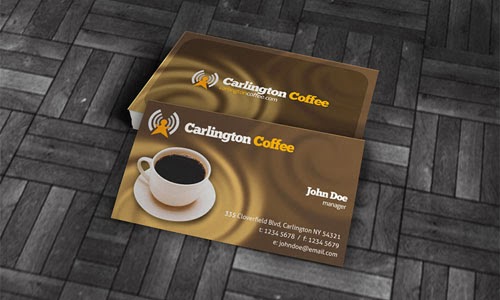
Coffee and Cefeteria Business Card Template
How to use a PSD mock-up
- Open the PSD in Photoshop and look for the smart object layer — it's usually clearly labeled (e.g. 'Your Design Here').
- Double-click the smart object's thumbnail. It opens as a separate document.
- Paste your design into that document, save it, close it.
- Back in the main file, your design now appears in perspective, with the scene's lighting and shadows applied. That's the whole trick.
What separates a good mock-up from a bad one
- Resolution. A mock-up smaller than your export size will go soft. Check the pixel dimensions before you commit.
- Realistic light and shadow. The best mock-ups sell the illusion with believable shadows and reflections; flat ones look like stickers.
- Organized layers. If the layer stack is a mess of 'Layer 47 copy 3', walk away — you'll waste more time deciphering it than the mock-up saves.
Frequently Asked Questions
How do I put my design into a Photoshop mock-up?
Open the PSD and look in the Layers panel for the Smart Object layer, usually labeled something like "Your Design Here". Double-click its thumbnail to open a new window, paste or place your artwork there, then save with Ctrl+S (or Cmd+S on Mac). When you return to the main file, your design appears on the mock-up with the perspective, lighting, and shadows already applied.
Can I use these free mock-ups in client work?
It depends on the license each download page states. Many of the mock-ups linked here are free for both personal and commercial use, but a few may be personal-use only, so check the terms on the source page before using one in paid work or publishing it as part of a brand deliverable.
Which version of Photoshop do I need?
Most layered mock-ups with Smart Objects open fine in Photoshop CS5 or CS6 and every newer version. If you do not have Photoshop, the free browser-based editor Photopea can also open and edit many Smart Object mock-ups.
What makes one mock-up better than another?
High pixel dimensions, cleanly organized layers, and believable light and shadow. A good test is zooming in: if the mock-up still looks convincing up close, it will hold up in a client presentation. Flat, low-resolution ones tend to look like stickers once scaled up.



1 Comments
Awesome collection man! Check out some new free PSD mockups @ http://kl-webmedia.com/free-psd-mockup-designs/
ReplyDelete